
Instructions for using the WildFireWeb® Content Management System
Click on the link to watch the video on: Uploading an Image
Using Images from the Internet
Before you download images from the web, ask yourself this question:
Do I have permission to use the image on my website?
If you do not have permission to use the image, don't use it. Using images without permission leaves you vulnerable to copyright infringement.
If so, proceed with directions to download images from the internet:
1) Go to the web page with the desired image. (For Mac users) You may use the following method for saving images from the web, as well as clicking on the image and dragging it to a desired location on your desktop.
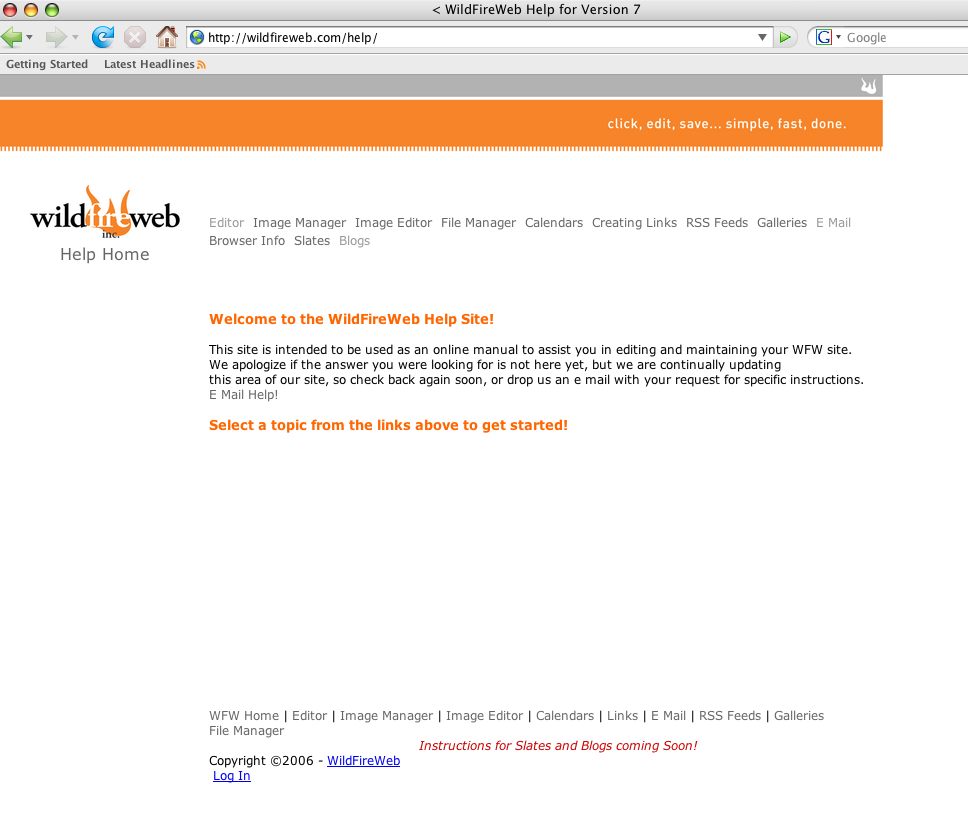
2) Scroll over the desired image and right click with your mouse (or control click on the Mac)
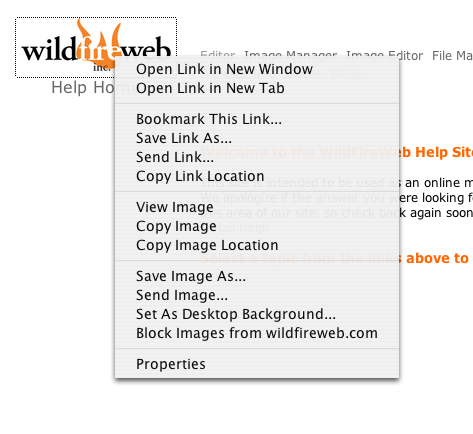
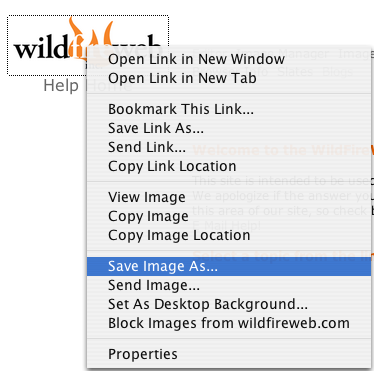
3) Choose Save Image As...
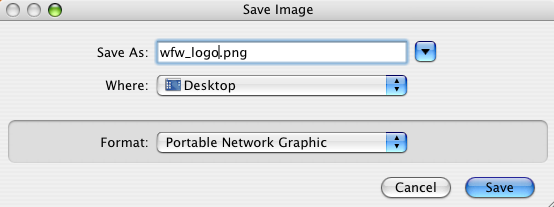
4) Name your image file and save to the desktop or a designated image file.
5) Your image is now available on your computer. Follow instructions in Browsing and Uploading images.
Do I have permission to use the image on my website?
If you do not have permission to use the image, don't use it. Using images without permission leaves you vulnerable to copyright infringement.
If so, proceed with directions to download images from the internet:
1) Go to the web page with the desired image. (For Mac users) You may use the following method for saving images from the web, as well as clicking on the image and dragging it to a desired location on your desktop.
2) Scroll over the desired image and right click with your mouse (or control click on the Mac)
3) Choose Save Image As...
4) Name your image file and save to the desktop or a designated image file.
5) Your image is now available on your computer. Follow instructions in Browsing and Uploading images.
