Instructions for using the WildFireWeb® Content Management System
Adding Widgets/Gadgets to Your Website
You can easily add a variety of widgets to your website.These include things such as the various "widgets" you'll find at Google Gadgets.
To add one of Google's gadgets you'll want to go here to Google's list of gadgets for your website.
Find the gadget you would like to add.
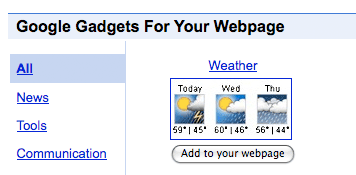
For example if you want to add the weather gadget to your website, on Google's page find that gadget, click the "add to your webpage" button below the thumbnail.
Each gadget will have various options that you can fill out, such as width and height, etc...
After you have customized your gadget, click get the code. You'll want to select and copy all the code.
Open the area of your page where you wish to place the Widget.
Click on the movie tool in the editor tool bar 
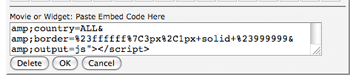
Paste the copied widget code into the box